Planning iOS Deployment with Cisco Meraki System Manager (SM)
One of the biggest advantages of Meraki SM is the ability to enrol, manage, and monitor different types of devices. Since each operating system has a unique MDM feature set, it’s important to review the relevant documentation for the device types you plan to manage. It is recommended to use a shared or organisation-owned Apple ID to set up these services, instead of a personal Apple ID, because others may need to access the account to renew these services in the future.
For Apple Device to Enrol Devices into Meraki SM – enterprise mobile device management system:
- Create Apple Push Notification service token (APNs)
- Create Apple Automated Device Enrolment (ADE) / Apple Device Enrolment Program (DEP)
- Add Apple’s Volume Purchase Program (VPP) account
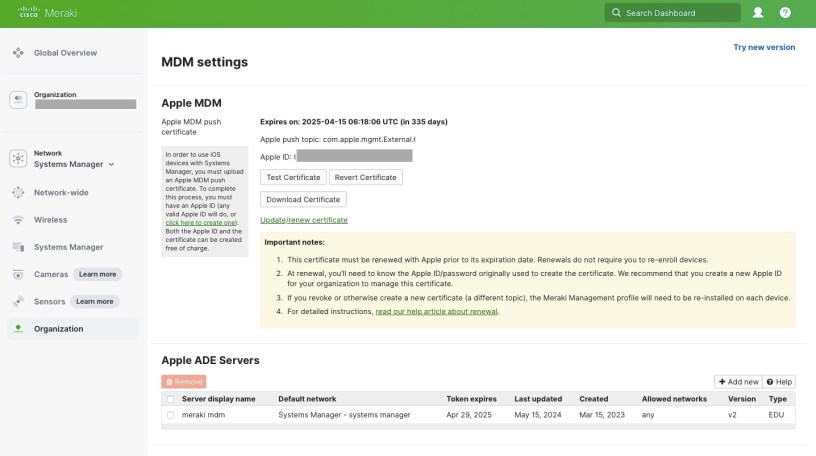
Step 1: Creating an Apple MDM Push Certificate
Apple Push Notification Service (APNS): Meraki Systems Manager (SM) uses APNS to communicate between Apple, Cisco Meraki, and the organisation’s enrolled Apple devices. **An APNS token is required to enrol & manage Apple devices. **
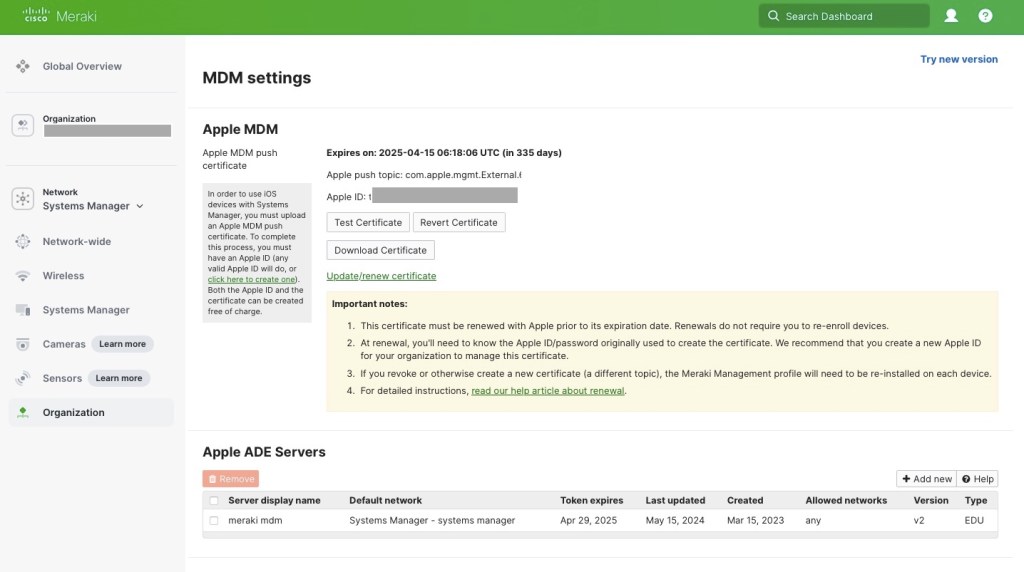
Step 2: Creating Settings Profile – ADE / DEP
Note: Apple Automated Device Enrolment (ADE) was formerly called Apple Device Enrolment Program (DEP).
The Apple Automated Device Enrollment (ADE) allows administrators to pre-provision iOS, iPadOS, and macOS devices to automatically self-enrol into Systems Manager before even touching them and provides an additional level of management control through bulk device supervision.
This greatly simplifies adding and deploying iOS, iPadOS, macOS, and tvOS devices with Automatic Device Enrolment into Meraki Systems Manager.
Note that supervision requires either setting up new devices or factory resetting existing devices.
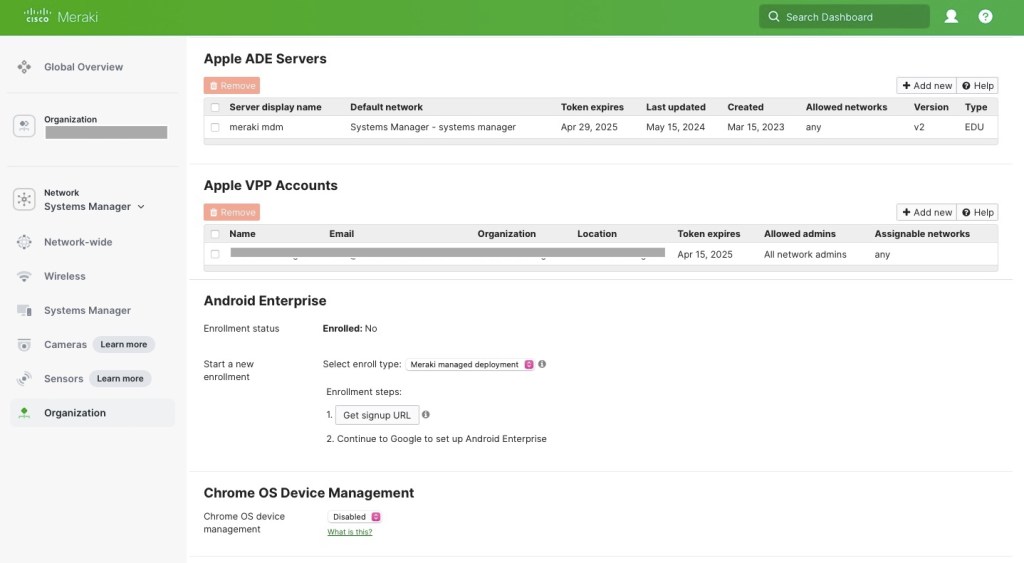
Step 3: Add Apple VPP Account(s) to Systems Manager
Apple’s Volume Purchase Program (VPP): VPP allows to centrally manage and maintain ownership of a library of purchased application licenses. In conjunction with supervision, it also allows Meraki SM to push apps silently (without user interaction) to iOS, iPadOS, macOS, or tvOS devices.

NB: For detailed information and guidance please visit the official websites.
References
- https://documentation.meraki.com/SM/Device_Enrollment/Apple_MDM_Push_Certificate
- https://documentation.meraki.com/SM/Device_Enrollment/Apple_Automated_Device_Enrollment_(ADE)
- https://documentation.meraki.com/SM/Apps_and_Software/Apple_Volume_Purchase_Program_(VPP)
- https://www.apple.com/business/docs/site/Apple_Business_Manager_Getting_Started_Guide.pdf
- https://business.apple.com/
- https://school.apple.com/
 Sadia's NOTES